Panes that adapt
Open one to nine folders in tiles, rows or columns. Resize dividers, swap panes and expand one when you need to focus.


Stop jumping between windows. Bring your folders together in panes you can arrange your way, and return to your projects with everything in place.
Version 1.2.0
Intel Mac · Apple Silicon Mac · Windows x64
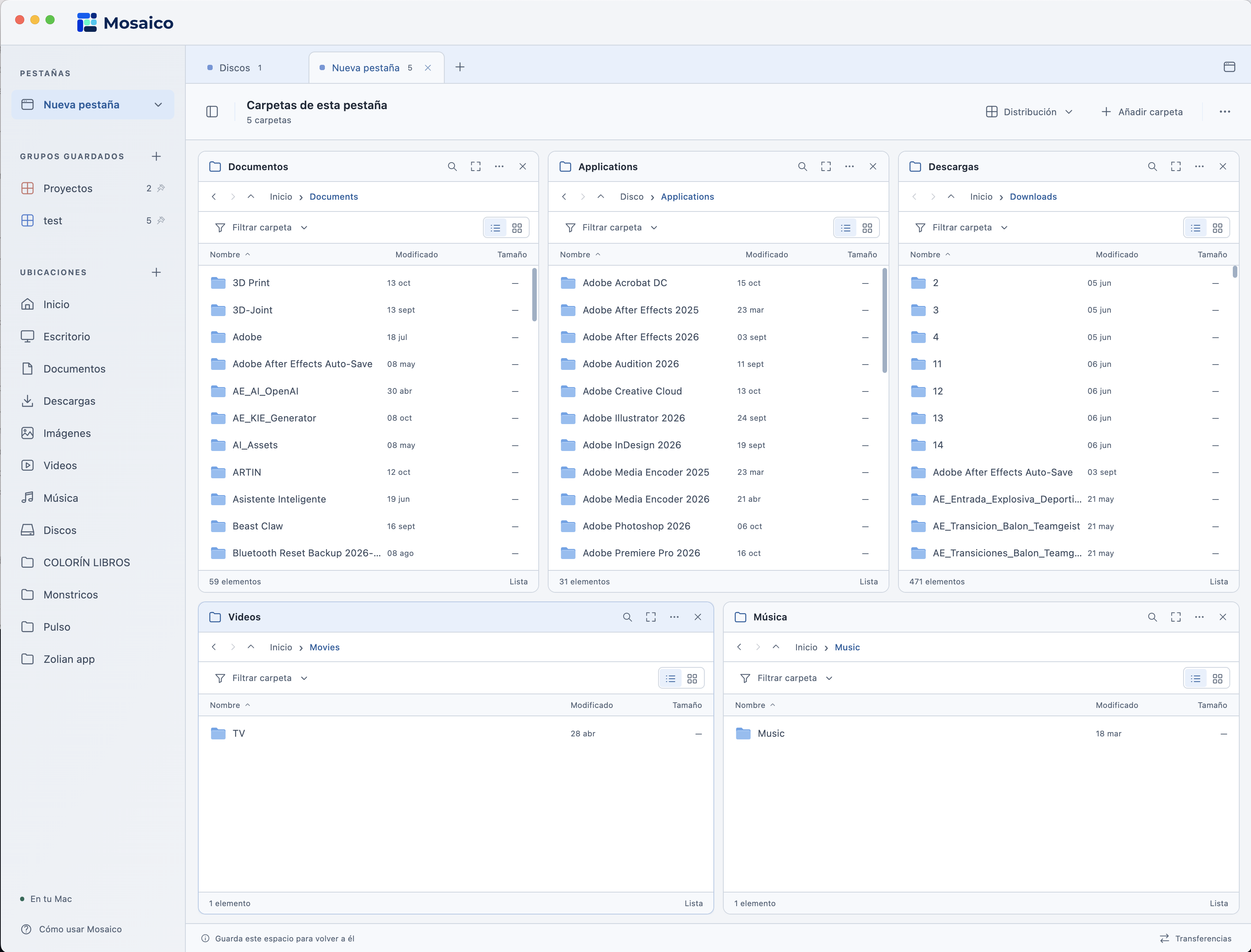
Open one to nine folders in tiles, rows or columns. Resize dividers, swap panes and expand one when you need to focus.
Save groups with a name and color. Restore their folders, views and layout without temporary navigation overwriting what you saved.
Filter by type, name, size or date. Type to filter the current folder, then press Enter to search names in its subfolders too.
Drag between panes and choose to copy or move. Review name conflicts and follow transfer progress while keeping your destination in view.
Organize tasks in tabs, move them between windows and reopen a recently closed tab. Pin frequently used folders in Locations.
Light, dark or system appearance; four interface sizes and Spanish or English. You can also find and replace text in multiple file names at once.
Photography, Video editing, Design and Projects: prepare a workspace for each task and move between them from the tab bar.
The Layout menu rearranges the folders in the current tab. Choose a view, drag the dividers and give more room to the pane that needs it.
Balanced grid arranges your folders across a set of panes. Bring originals, resources and deliveries together in one view.
Hover over New tab in the sidebar to see every layout: from one folder to nine panes, with grids, rows, columns and a large pane on one side. Choose one, then change its folders to suit your work.
Drag a pane header onto another pane to swap them. Use the expand button to work in one pane, then return to the full layout.
The magnifier in each pane opens Search by name. Start typing to narrow the list in that folder; press Enter or the arrow to search its subfolders too.
Refine your selection with the funnel: combine criteria in one pane while keeping the others as they are.
Select files and open Folder options → Find and replace in names. Enter the text you want to change and review the result before applying it.
Otoño_001.pngEditorial_001.pngFrom the first click to the final delivery, each pane has its own tools for browsing, viewing and organizing files.
Use Back, Forward and Parent folder in each pane. Path segments are clickable, and the folder name opens a menu with its parent folders and other locations.
Add shortcuts with the + button in Locations or with Pin to locations. Drag to reorder them and remove a shortcut when you no longer need it; your folders stay where they are.
Change each folder’s view, browse thumbnails and sort by Name, Modified or Size. You can also show hidden files from Folder options.
Right-click a folder and choose Open in this mosaic. It becomes another pane in the same tab, keeping the folder you started from open.
When you drag files, choose Copy or Move and how to handle matching names: Keep both with a new name or Skip item. Transfers shows progress and lets you cancel pending items.
Copy, cut and paste; rename a file, create a folder or move a selection to Trash from the context menu. Select multiple items with your keyboard and mouse.
Open files in their application, use Quick Look on Mac, copy their location or reveal them in Finder or Windows Explorer.
Hide the sidebar, expand a pane or use full screen. Adding or closing panes preserves the structure and relative sizes of the panes that remain.
Settings → Appearance offers Light, Dark and Use system setting. Your choice applies to open windows and to the ones you open later.
Choose Español or English and adjust Text and icon size: Small, Medium, Large or Extra large. Your preferences are kept for next time.
Mosaico works with your folders and saves groups, locations and preferences locally. Use it without creating an account; the app has no servers or telemetry.
Dark mode adapts panes, menus and dialogs. Choose your appearance in Settings or let Mosaico follow your system.
Use ⌘ on Mac and Ctrl on Windows for these shortcuts.
Actual Mosaico screenshots on Mac, prepared with example folders, files and groups to show its features.
Choose the edition for your processor. These are complete Mosaico 1.2.0 packages, not an application that runs in your browser.
For Macs with an Intel processor
macOS 13 or later
Download for Intel MacTested on macOS 15 IntelNative for Apple M1 chips and later
macOS 13 or later
Download for Apple Silicon MacNot yet tested on Apple SiliconPortable edition for x64 computers
Extract the entire ZIP
Download for WindowsNot yet tested on Windows