Adaptive chains
Arrange up to seven layers around a central layer. When text changes, the outer layers reposition automatically.

Connect layers in a chain that adapts to text. Add Auto Fit and backgrounds that follow the content.
GLUE builds horizontal layouts that respond to the size of their content. Its two tabs separate layer arrangement from fitting text within an area and creating an adaptive background.
 View full screenshot ↗
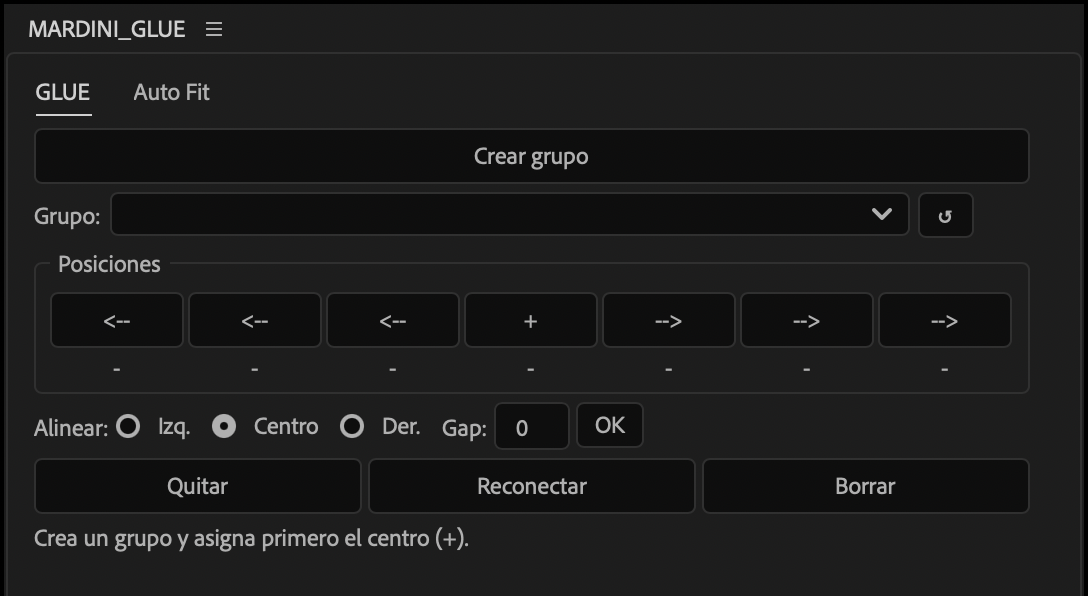
Click Crear grupo (Create group) and assign the center layer with + first. Select each side layer and click its slot: there are three on each side. Alinear (Align) places the layout’s left edge, center or right edge at the center layer’s position. Gap sets spacing in pixels; apply it with OK. Quitar (Remove) detaches the selected layer, Reconectar (Reconnect) rebuilds the group’s expressions and Borrar (Delete) deletes the group.
 View full screenshot ↗
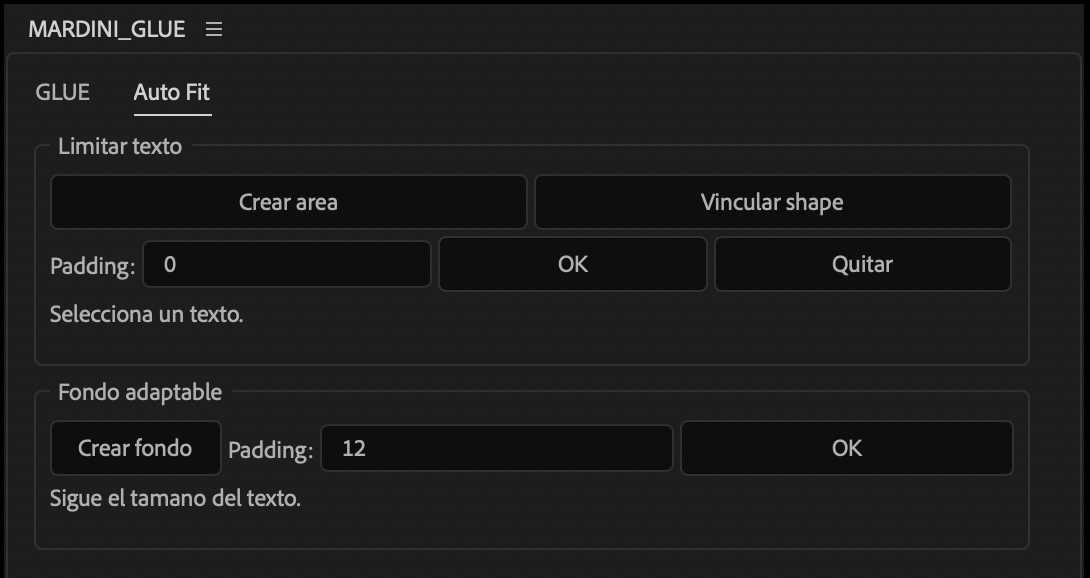
Select text and click Crear área (Create area) to generate a guide rectangle, or select text and an existing shape and use Vincular shape (Link shape). Adjust the rectangle and Padding to define the inner space: Auto Fit adapts the text’s scale. Quitar (Remove) removes the fit. Under Fondo adaptable (Adaptive background), Crear fondo (Create background) adds a box that follows the text; its Padding sets the surrounding margin and is applied with OK. Fill and Stroke remain editable.
Actual panel screenshots. Button labels are kept as they appear in the interface.
Arrange up to seven layers around a central layer. When text changes, the outer layers reposition automatically.
Fit text inside a guide rectangle, with an adjustable inner margin.
Create a background that follows the content’s width, height, scale and position, with editable Fill and Stroke.
Steps to install this version of GLUE.
Download the ZIP on this page and find MARDINI_GLUE.jsx. No installer needs to be run.
Place MARDINI_GLUE.jsx in your installation’s Scripts/ScriptUI Panels folder. Copy the JSX file, not the entire ZIP.
Find the script in the Window menu. Open the panel and dock it in your workspace.
/Applications/Adobe After Effects [versión]/Scripts/ScriptUI Panels/C:\Program Files\Adobe\Adobe After Effects [versión]\Support Files\Scripts\ScriptUI Panels\Adjust the After Effects version and installation location for your computer. Copying files into the application may require administrator permissions.