Images, videos and music
Choose a mode and model, enter a prompt and adjust its options. Music supports instrumental tracks or lyrics; available options depend on the model.

Generate images, videos and music with Kie.ai. Use references, choose between results and insert them into your composition.
KIE 4.1 brings image, video and music generation into After Effects. Configure a task, add references when supported and choose which result to bring into your composition. The panel is free; you need your own Kie.ai account, API key and credits.
 View full screenshot ↗
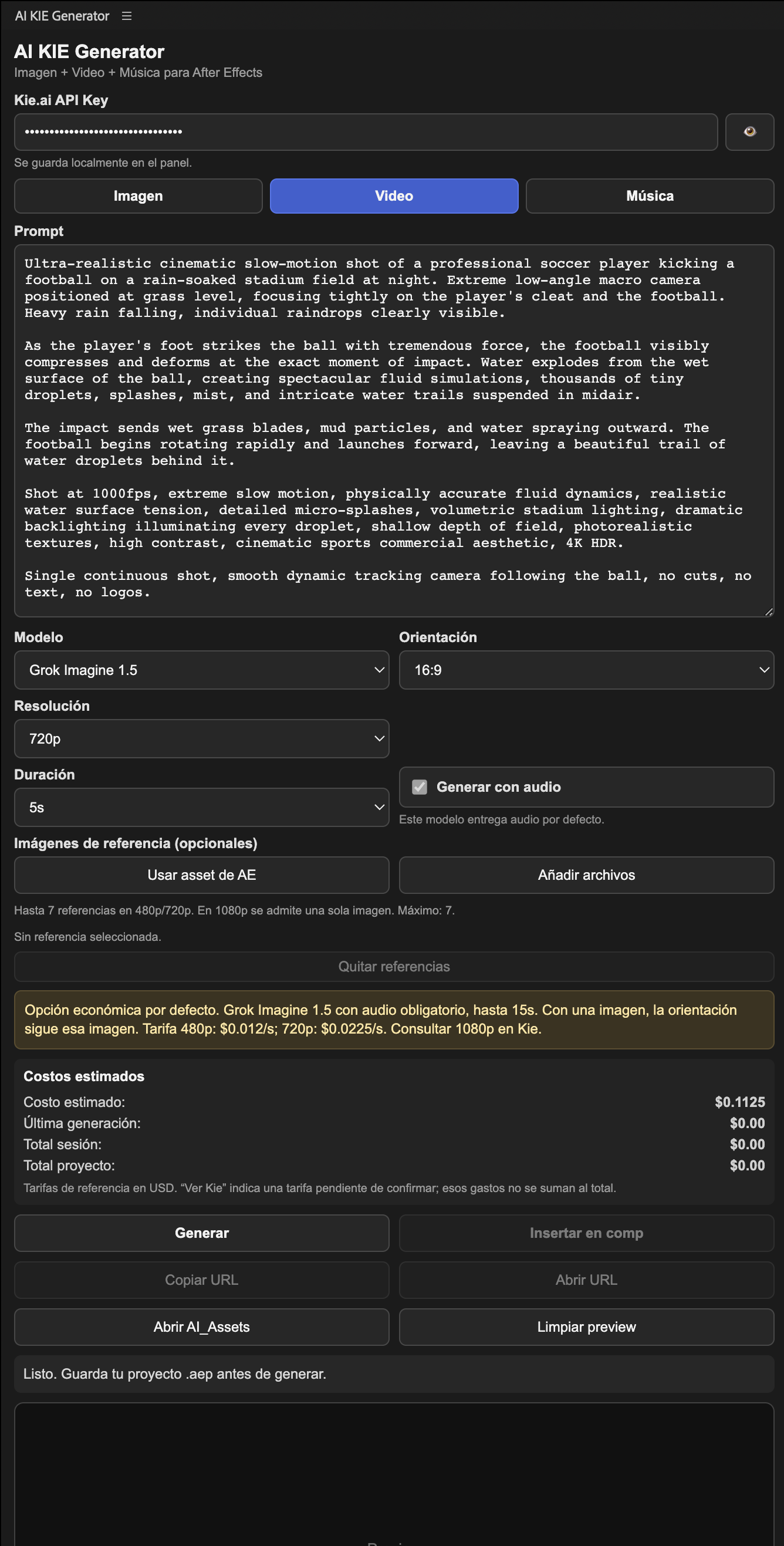
Choose Imagen (Image), Video or Música (Music) and select a model. Visible parameters depend on the mode and model: orientation, resolution, format, duration, audio or transparency. Usar asset de AE (Use AE asset) adds selected assets; Añadir archivos (Add files) selects references from your computer. References can be removed individually. Review the limits and Costos estimados (Estimated costs) before clicking Generar (Generate). For Music, fill in style and title and choose instrumental or lyrics.
 View full screenshot ↗
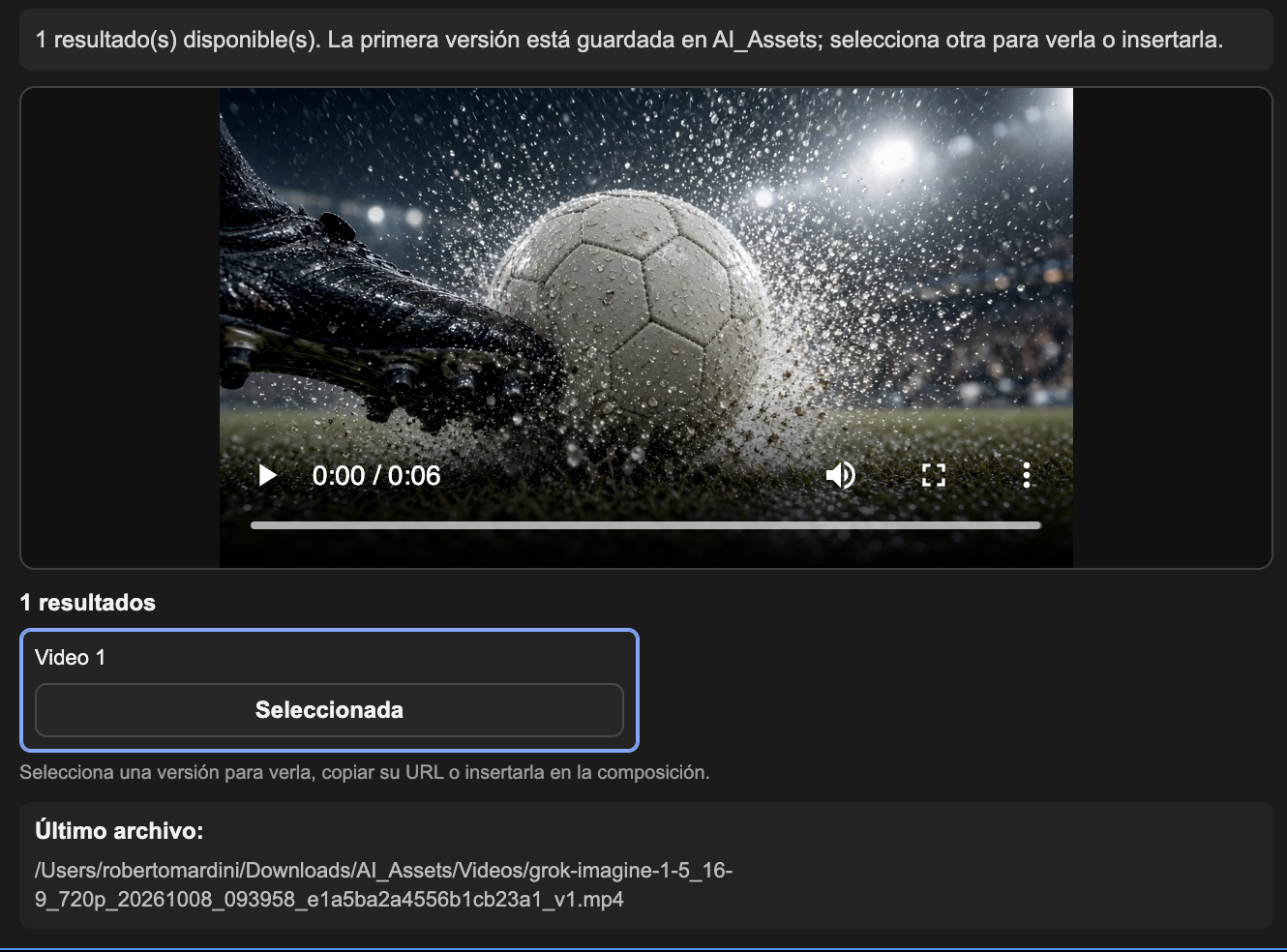
The gallery shows versions returned by the task. Select one to preview or listen to it: Insertar en comp (Insert in comp), Copiar URL (Copy URL) and Abrir URL (Open URL) use that selection. The panel attempts to save the first version automatically in AI_Assets alongside the .aep; other versions download when inserted. Each task and version uses a separate file. Abrir AI_Assets (Open AI_Assets) opens the folder; Limpiar preview (Clear preview) clears the preview. If downloading fails, you can retrieve the result by URL.
Actual panel screenshots. Button labels are kept as they appear in the interface.
Choose a mode and model, enter a prompt and adjust its options. Music supports instrumental tracks or lyrics; available options depend on the model.
Add files or selected After Effects assets as references, within each model’s limits. Enable Fondo transparente (Transparent background) when supported.
Preview and select results. The first version downloads automatically into AI_Assets; other versions download when you insert them. Review cost estimates and session and project totals.
Steps to install this version of KIE.
Extract AE_KIE_Generator_Panel from the 4.1.0 ZIP. Keep its CSXS, js, jsx and css folders and index.html file together. The js folder includes main.js and models.js; both are required.
Place AE_KIE_Generator_Panel in your user’s CEP/extensions folder. Do not copy only index.html or the ZIP’s outer container folder.
This distribution is unsigned. If it does not appear, it requires PlayerDebugMode for the installed CSXS runtime. See the help section on this page; on a managed computer, ask IT for authorization.
Restart After Effects and choose Window > Extensions > AI KIE Generator. Enter your own Kie.ai API key in the panel.
Close After Effects and keep a backup of your old installation outside CEP/extensions. Replace its complete folder with AE_KIE_Generator_Panel 4.1.0; do not mix old and new files. Restart After Effects if the old interface remains cached.
~/Library/Application Support/Adobe/CEP/extensions/%APPDATA%\Adobe\CEP\extensions\Adjust the After Effects version and installation location for your computer. Copying files into the application may require administrator permissions.
For your own computer with CSXS 11, Adobe documents these settings. Use the installed runtime’s number if it differs. Debug mode allows unsigned extensions to load; install only trusted code.
macOS · Terminaldefaults write com.adobe.CSXS.11 PlayerDebugMode 1Windows · Registry EditorUnder HKEY_CURRENT_USER\Software\Adobe\CSXS.11, create a string value named PlayerDebugMode with the data 1. Restart After Effects. On a company computer, ask IT to configure this.
To disable it, change the value to 0. Official Adobe documentation ↗